
Training module

Patient Registration via Form App

Back to training

Use the detailed BnTRx Form registration reference and resolve common mobile verification, clinic connection, and payment setup issues.

Start registration and verify mobile

  1. 1

    Patient attends clinic appointment.

  2. 2

    Patient scans the BnTRx QR code and opens https://form.bntrx.com.au/.

  3. 3

    Patient selects Register.

  4. 4

    Patient enters Given Name, Family Name, Date of Birth, and Mobile number.

  5. 5

    Patient selects Verify Mobile.

  6. 6

    A one-time 6-digit code is sent by SMS.

  7. 7

    Patient enters the code and selects Confirm.

  8. 8

    Verification confirms control of the mobile number before account access.
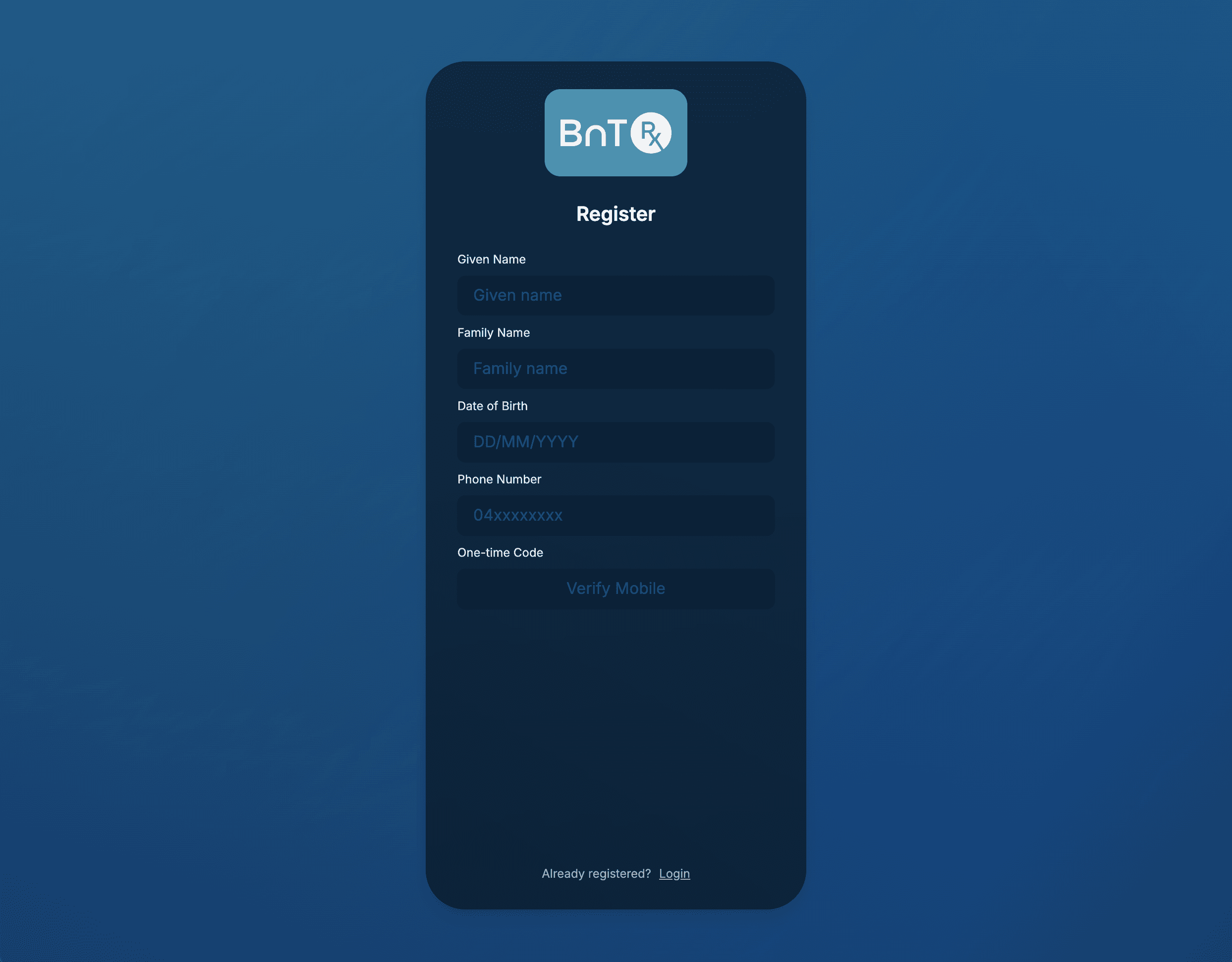
BnTRx Form patient registration

Complete profile and connect clinic

  1. 1

    Patient creates a password, accepts Terms of Use, and selects Register.

  2. 2

    Patient reviews Personal Details and enters Billing Details, including address and optional email.

  3. 3

    Patient selects Medicare rate type (main Medicare or concession).

  4. 4

    Patient selects clinic from the dropdown list.

  5. 5

    Patient reviews consent text and selects Connect to Clinic.

  6. 6

    Form details are submitted to clinic and appear in BnTRx Clinic Patient Form In-tray.

Set up payment and complete

  1. 1

    Patient selects Proceed to Payment.

  2. 2

    Stripe opens in a new window and default state shows No Payment Method.

  3. 3

    Patient selects Add payment method and chooses Card or AU Direct Debit.

  4. 4

    Patient enters payment details and confirms setup.

  • If Direct Debit is chosen, Stripe requires an email address.
  • If patient has no email, clinic email can be used and the clinic will not receive correspondence.
  • If a patient cannot provide a payment method, they should notify reception.

Patient has completed BnTRx Form registration and payment setup.

Mobile verification troubleshooting

  • Confirm the mobile number was entered correctly before requesting another code.
  • Allow time for the one-time SMS code to arrive before retrying.
  • Use the most recently issued code if more than one code was requested.
  • Confirm the patient has mobile reception and can receive SMS messages.
  • If verification cannot be completed, use the paper registration workflow.

Clinic connection troubleshooting

  • Confirm the patient selected the correct clinic from the dropdown list.
  • Confirm the consent section was completed before selecting Connect to Clinic.
  • If the clinic does not appear, ask clinic staff to confirm the clinic account is active.
  • After connection, confirm the patient appears in the BnTRx Clinic Patient Form Intray.

Payment setup troubleshooting

  • If Stripe does not open, check whether the browser blocked a new window.
  • Direct Debit requires an email address.
  • Confirm all required card or bank-account fields are complete before selecting Add.
  • If the patient cannot provide a payment method, ask them to notify reception and use the paper workflow where appropriate.

Returning patients

Patients who already have a BnTRx Form account should select Login rather than Register. They should use the mobile number linked to their existing account.

Patients registered at another clinic

If a patient is already registered with BnTRx Form at another clinic and is registering at your clinic for the first time, ask them to log in with their existing account. After logging in, the patient can open the Clinic Submission Details accordion, scroll down, and select Return to Form to resubmit the form to your clinic.