
Training guide

Vial Stock

Back to training

Use the Stock tab to monitor the clinic's vial supply and identify stock that is on hand, submitted for replacement, or on its way from HPS.

Why vial stock is tracked

BnTRx tracks vial stock by doctor and medication so the clinic can understand the following information.

  • What is physically available for treatment.
  • What has been used and submitted for replacement.
  • What has already been ordered through HPS.
  • The total stock associated with each doctor and medication.

The opening stock entered during clinic setup provides the starting point for this tracking.
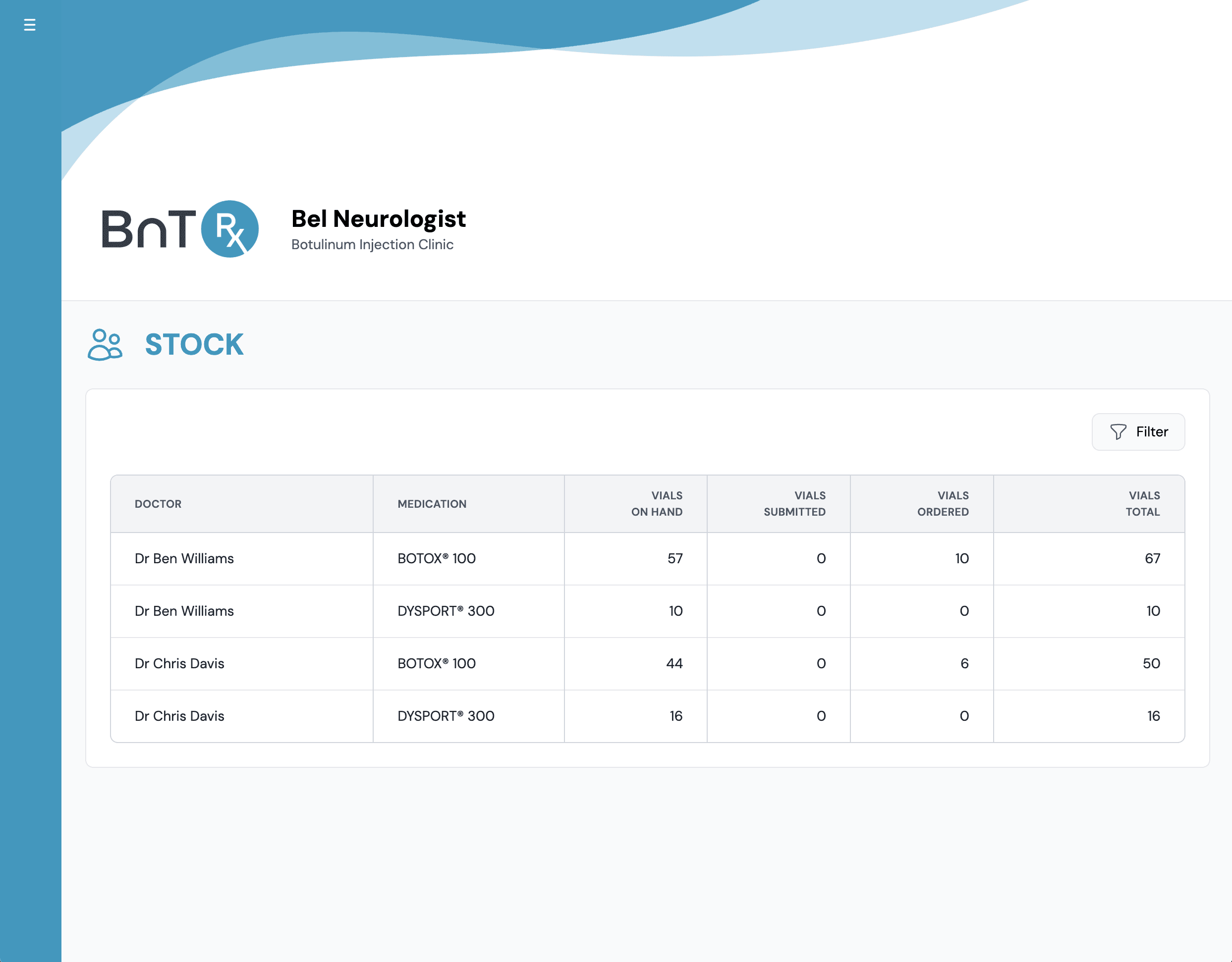
Open the Stock tab

  1. 1

    Open the Stock tab from the main navigation.

  2. 2

    Review the rows for each doctor and medication.

  3. 3

    Check for stock that is available, submitted, or awaiting delivery.

  4. 4

    Compare the displayed information with the clinic's expected stock position.

Check the Stock tab regularly, particularly after submitting patient orders or receiving replacement vials.

Stock tab showing vial counts by doctor and medication

Filter the Stock table

Use the Filter button when the clinic has multiple doctors or medication types.

  1. 1

    Select Filter.

  2. 2

    Choose the relevant doctor, medication, or both.

  3. 3

    Apply the filter.

  4. 4

    Review the matching stock rows.

  5. 5

    Clear the filter to return to the full clinic view.

Understand stock movement

Stock moves through BnTRx as orders are processed.

  1. 1

    Vials begin as stock available in the clinic.

  2. 2

    After treatment and order submission, replacement quantities appear as Submitted.

  3. 3

    After the order is sent to HPS, the replacement quantity appears as Ordered with HPS.

  4. 4

    After delivery reconciliation, the quantity returns to the clinic's available stock.

For exact column definitions and calculations, follow the Stock Table Overview training module. For instructions on inspecting orders sent to HPS, follow the View Orders Sent to Pharmacy training module. For delivery processing, follow the Receive and Reconcile Orders training module.