Training guide

Post Treatment

Back to training

Follow the post-treatment order checklist from Incomplete through Draft, Submitted, and Ordered status.

Understand the order status flow

A treatment order moves through four main statuses.

  • Incomplete - the patient has been added to today's clinic list, but treatment details are not yet saved.
  • Draft - medication and vial details are saved while the prescription is prepared or checked.
  • Submitted - the prescription is uploaded and the order has been submitted by the clinic.
  • Ordered - the submitted order has been sent to the nominated pharmacy.
Add patient to today's clinic list

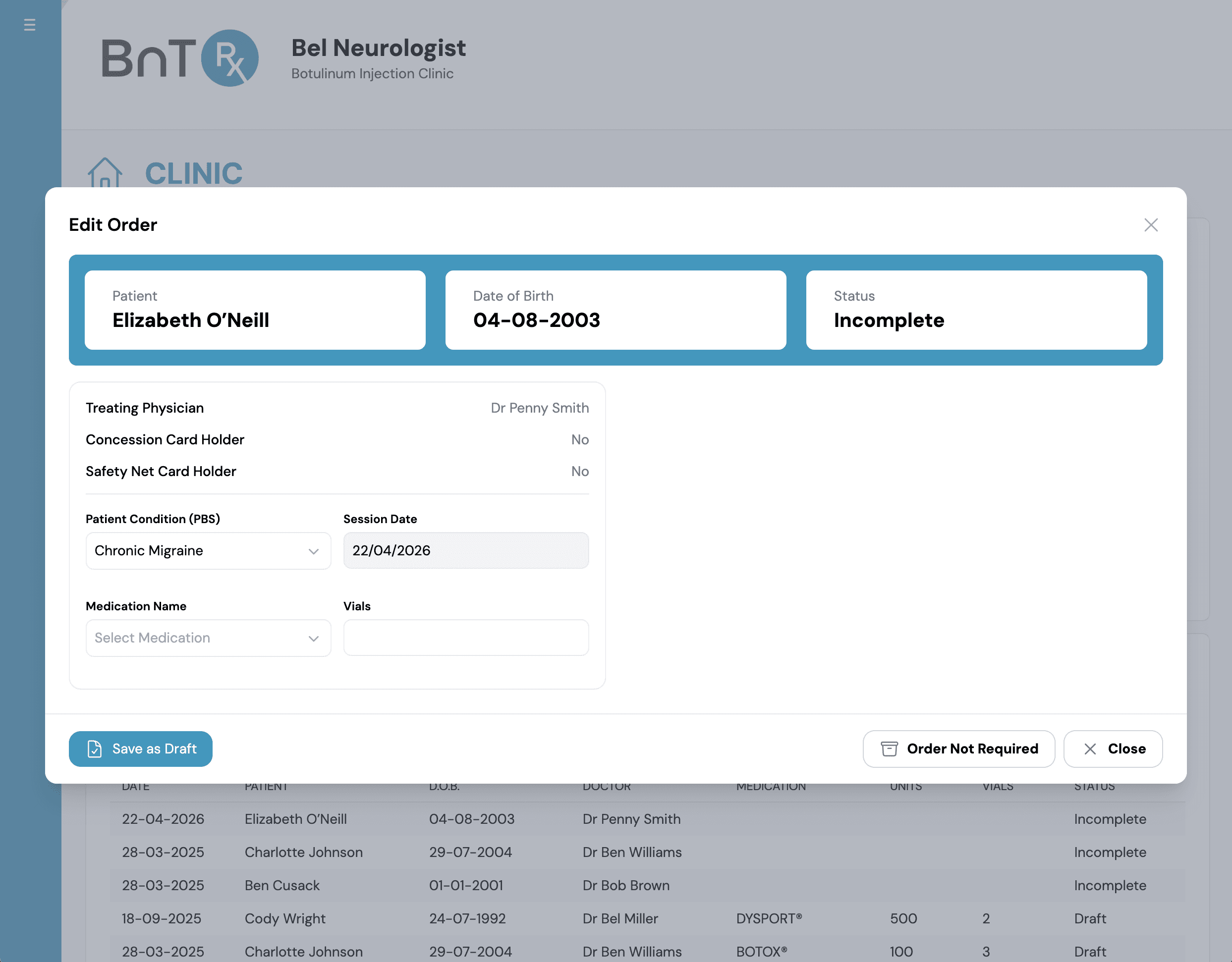
Add the registered patient to today's clinic list so an Incomplete order is created. If the patient was confirmed from the intray using Confirm and Create Order, this step is already complete. For the complete procedure, follow the Add Patient to Today's Clinic List training module.

Incomplete order awaiting medication selection

Create a draft order

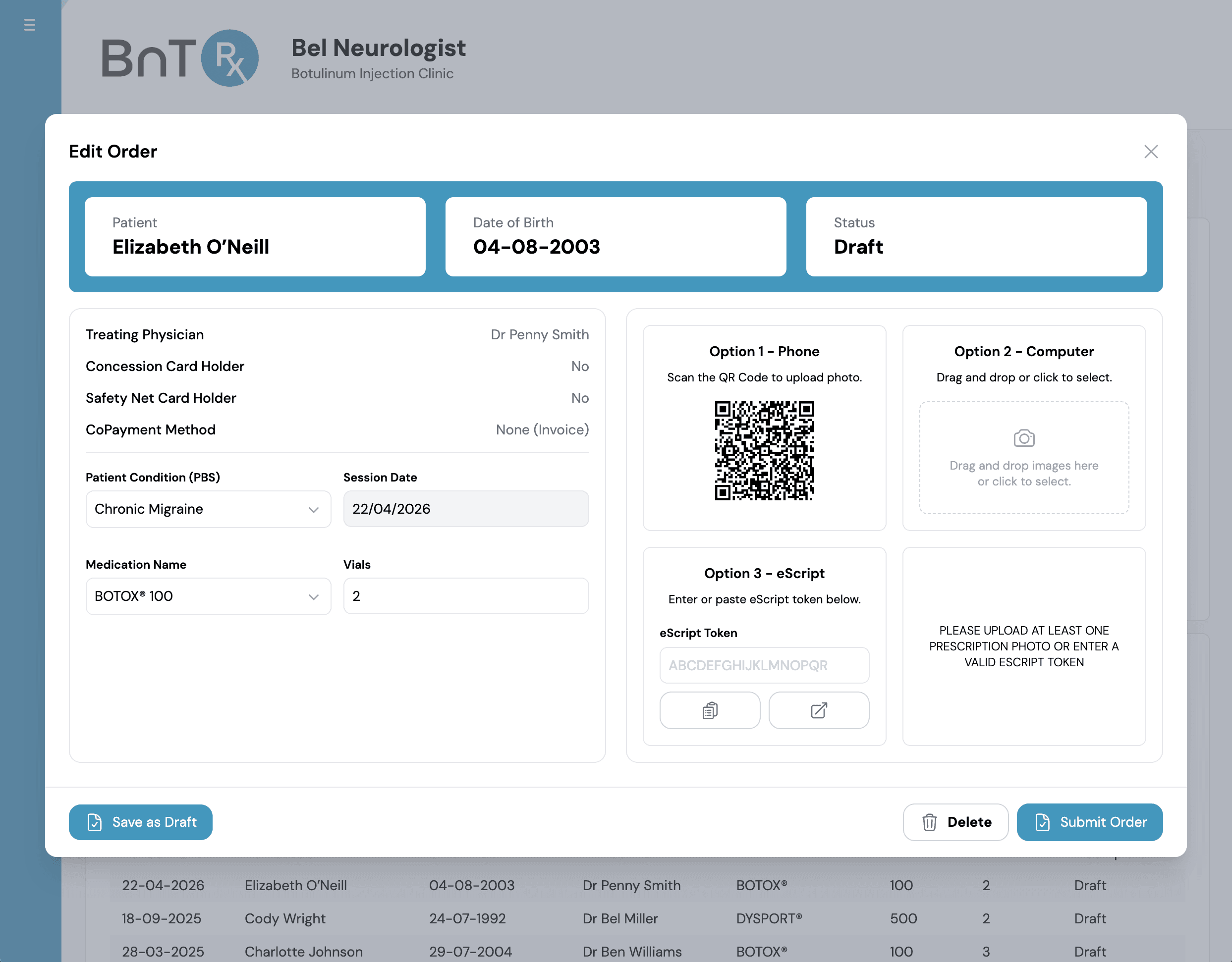
Open the Incomplete order, confirm the prescribing doctor, enter the medication and vial quantity, then save the order as Draft. Upload the prescription before submitting the order. For upload methods and the complete submission procedure, follow the Create Draft Order and Submit training module.

Draft order with medication and prescription upload

Submit the order

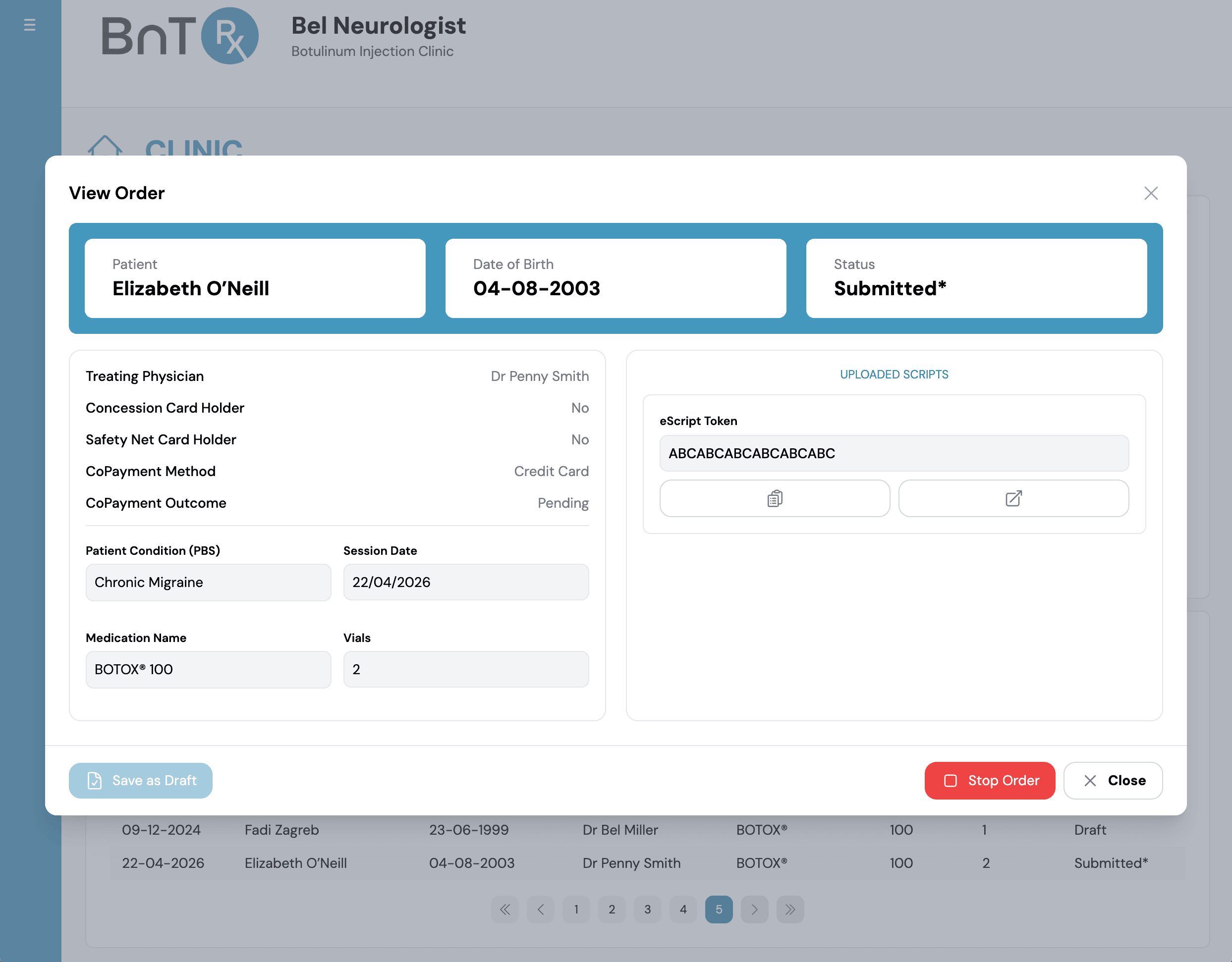
After checking the medication, vial quantity, prescribing doctor, and prescription image, select Submit Order. The order status changes to Submitted. Important - you have two hours to stop or edit a submitted order before the patient's co-payment is processed. For permitted changes and timing details, follow the Stop or Edit Order training module.

Submitted order with Stop Order option

After submission

Submitted orders are sent to the nominated pharmacy through the overnight order process. Once sent, the status changes to Ordered and the order leaves today's clinic list. Track subsequent progress in the Stock tab or Log tab. For pharmacy batching and status timing, follow the Pharmacy CSV Order Process training module.