Training guide

Setup

Back to training

Configure your clinic details, invite staff, assign roles, and enter your initial vial stock before using BnTRx with patients.

Edit clinic details

Start by entering your clinic's information so it appears correctly throughout BnTRx.

  1. 1

    Open the Admin tab.

  2. 2

    Select Edit Clinic.

  3. 3

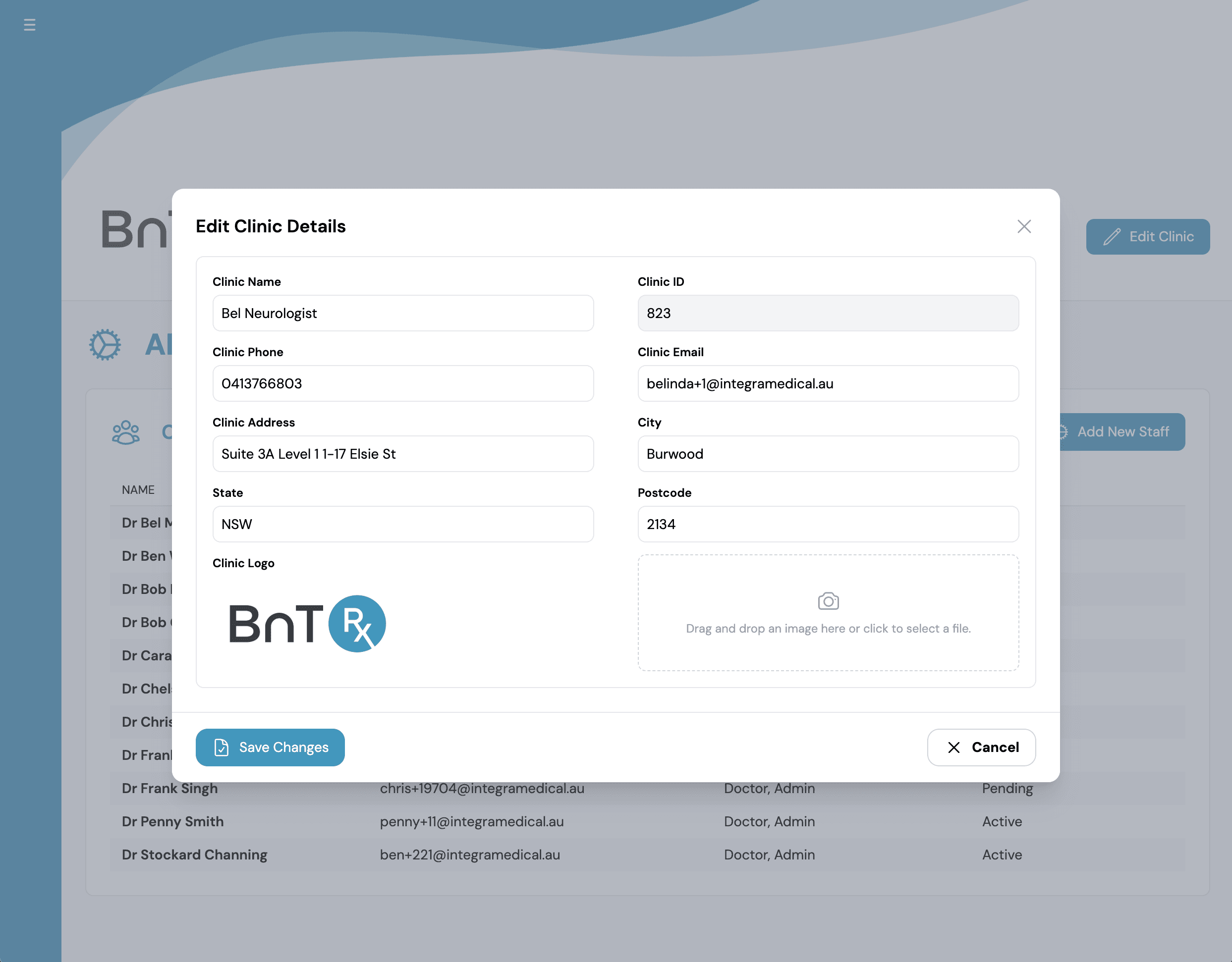
    Enter the clinic name, address, phone number, and email.

  4. 4

    Upload the clinic logo if desired.

  5. 5

    Select Save Changes.

Edit Clinic Details dialog

Invite clinic staff

Add the doctors, administrators, nurses, and other staff who will use BnTRx.

  1. 1

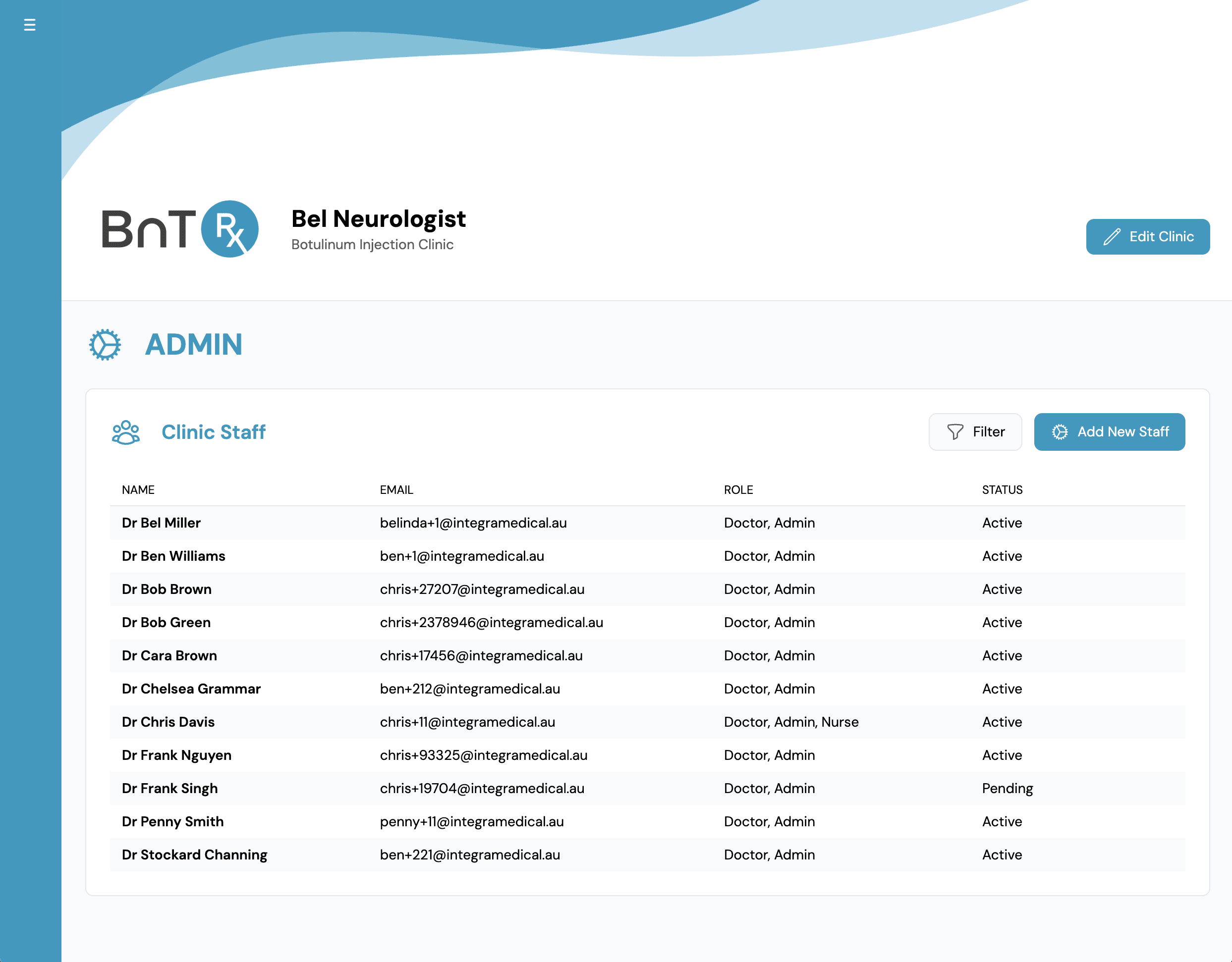
    Open the Admin tab.

  2. 2

    Find the Clinic Staff section.

  3. 3

    Select Add New Staff.

  4. 4

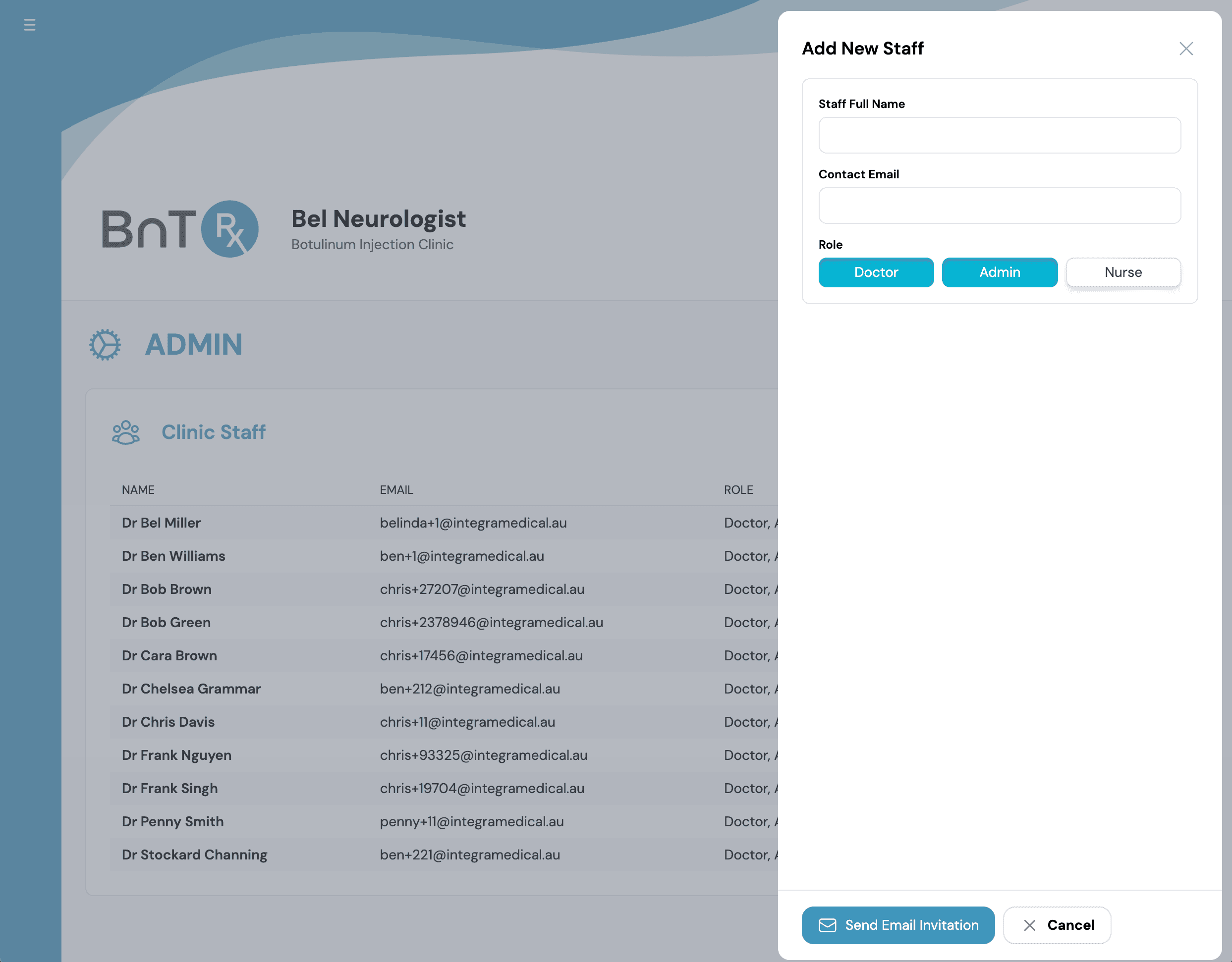
    Enter the staff member's name and email address.

  5. 5

    Assign the appropriate role.

  6. 6

    Select Send Email Invitation.

The staff member appears as Pending until they accept the invitation. Invitations expire after 24 hours and can be resent if required.

Admin tab showing clinic staff list
Add New Staff dialog with role selection

Assign staff roles

Choose roles according to each staff member's responsibilities.

  • Practice Administrator - manages clinic details, staff access, patients, orders, and stock workflows.
  • Doctor - manages assigned patients and orders and can have vial stock allocated in BnTRx.
  • Nurse - manages patient and order workflows without clinic administration access.

Keep at least one active Practice Administrator in the clinic. Turn off the Doctor role for administrators who do not prescribe botulinum toxin or own vial stock.

Confirm staff access

After staff accept their invitations, confirm that their access is configured correctly.

  1. 1

    Return to the Clinic Staff section.

  2. 2

    Confirm that each person appears as Active.

  3. 3

    Open each staff record.

  4. 4

    Check their email address and assigned roles.

  5. 5

    Correct any access settings before the clinic's first patient session.

Set initial vial stock levels

Before day one, count the vials currently in the clinic fridge so the starting counts are ready to enter in BnTRx.

  1. 1

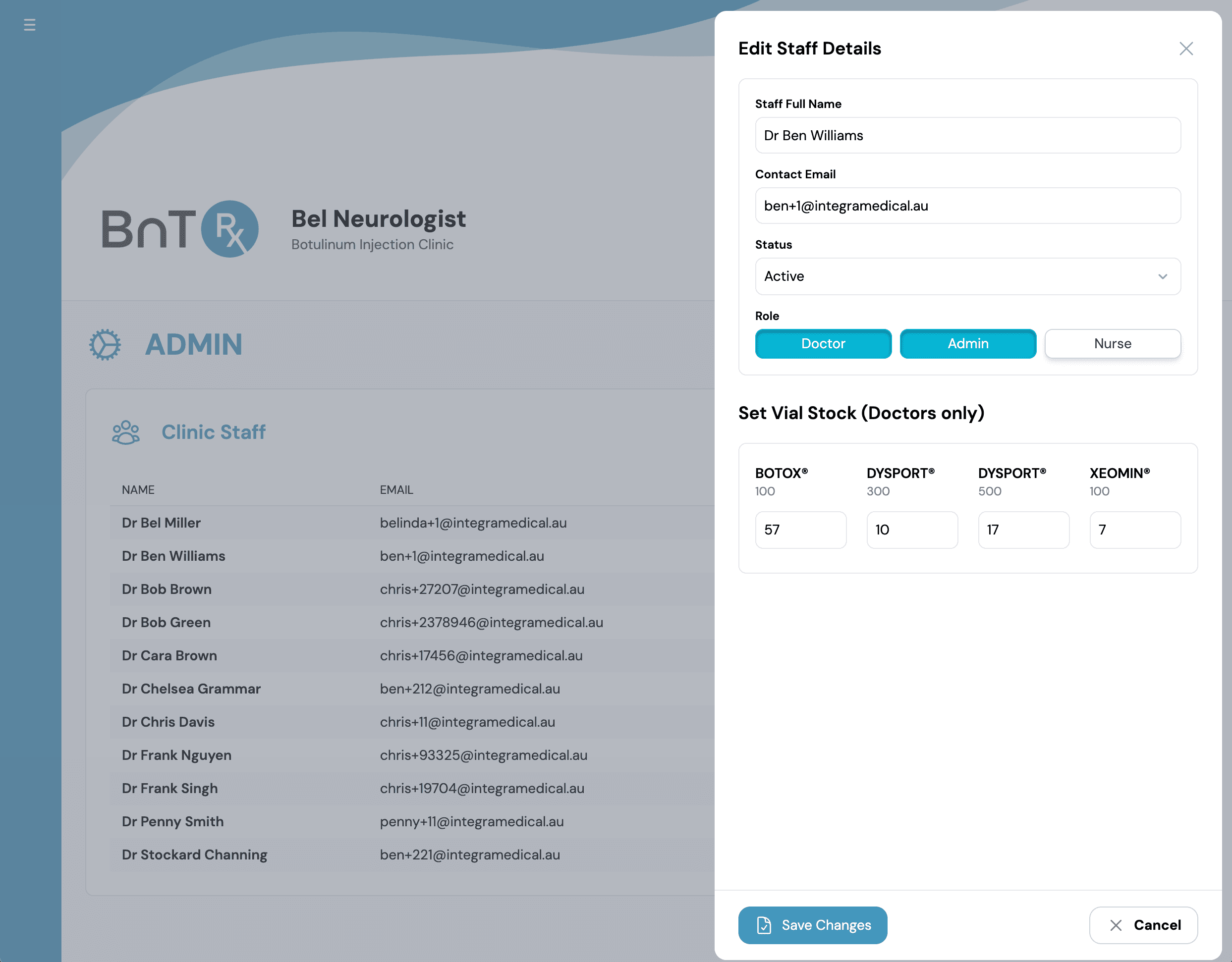
    Open each doctor's staff record from the Clinic Staff section.

  2. 2

    Enter the current vial count for that doctor.

  3. 3

    Repeat this process for each medication and vial type.

  4. 4

    Select Save Changes.

  5. 5

    Repeat for every doctor who owns vial stock.

These values establish the clinic's opening baseline in the Stock tab. From day one, use the stock receipt and reconciliation workflow to maintain stock levels.

Edit staff details with vial stock allocation