
Training module

Receive and Reconcile Orders

Back to training

Record complete or partial replacement-vial deliveries in BnTRx and confirm that the Stock table updates correctly.

Open Reconcile Orders

  1. 1

    Open the Stock tab.

  2. 2

    Find the row for the relevant doctor and medication.

  3. 3

    Select the row.

  4. 4

    The Reconcile Orders dialogue opens on the right.

  5. 5

    Review the listed orders and the total outstanding vial quantity.

By default, all outstanding orders are selected.
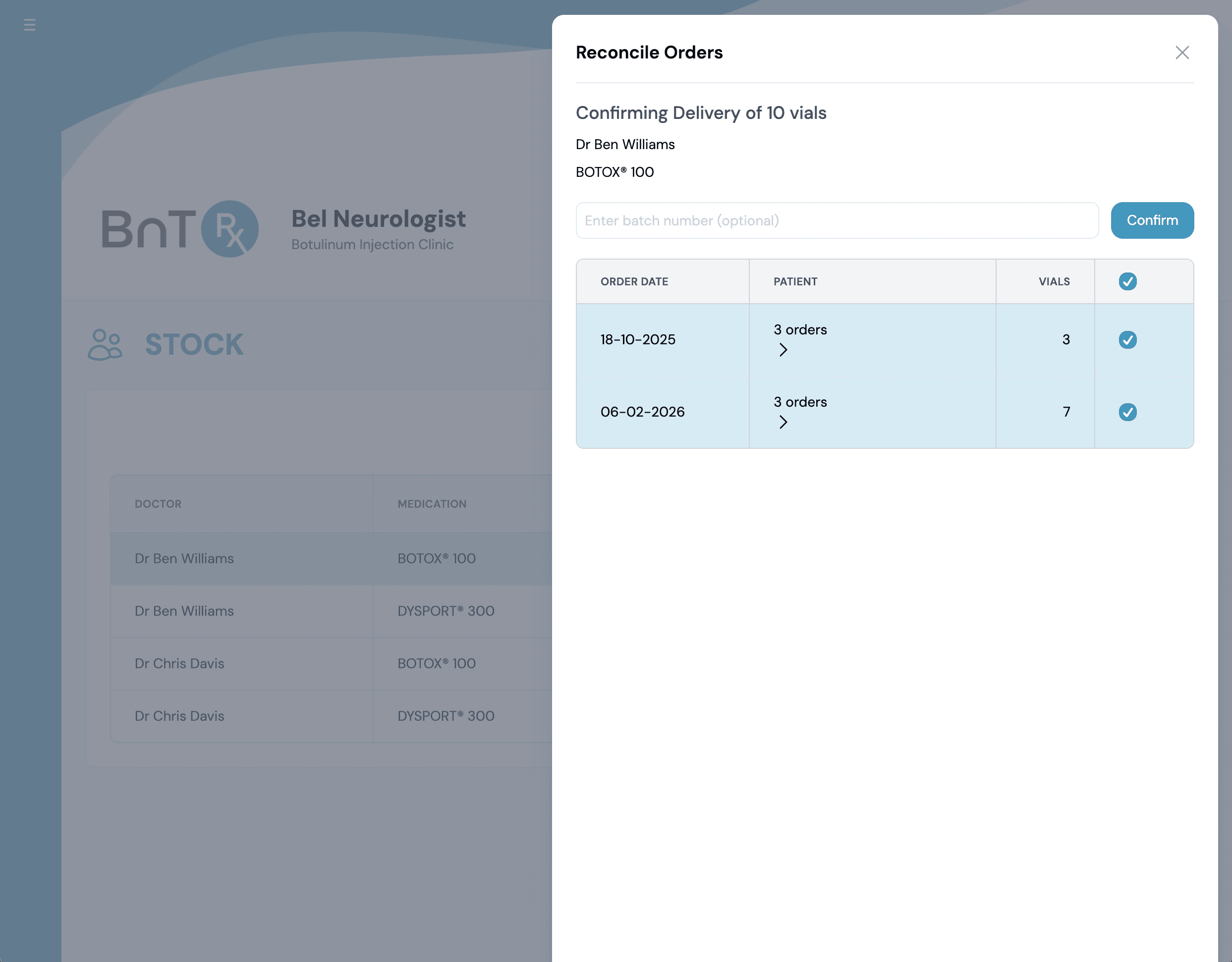
Reconcile Orders dialog for confirming delivery

Reconcile a complete delivery

Use this option when the physical delivery contains all outstanding vials shown in Reconcile Orders.

  1. 1

    Leave the top checkbox selected.

  2. 2

    Confirm that all listed orders remain selected.

  3. 3

    Verify that the displayed vial total matches the physical delivery.

  4. 4

    Enter the batch number if it is available.

  5. 5

    Select Confirm.

All selected orders are marked as received.

Reconcile part of a delivery

Use this option when the delivery contains only some of the outstanding orders.

  1. 1

    Clear the top checkbox to deselect all orders.

  2. 2

    Select only the orders included in the physical delivery.

  3. 3

    Verify that the selected vial total matches the delivery.

  4. 4

    Enter the batch number if it is available.

  5. 5

    Select Confirm.

Orders that were not selected remain outstanding.

Reconcile orders from a particular day

If the delivery covers all outstanding orders from one order date:

  1. 1

    Clear the top checkbox.

  2. 2

    Find the relevant date.

  3. 3

    Select the orders from that date.

  4. 4

    Confirm that the vial total matches the delivery.

  5. 5

    Enter the batch number if it is available.

  6. 6

    Select Confirm.

Reconcile an individual order

  1. 1

    Clear the top checkbox.

  2. 2

    Select the individual order received.

  3. 3

    Confirm the medication and vial quantity.

  4. 4

    Enter the batch number if it is available.

  5. 5

    Select Confirm.

  6. 6

    Repeat for each additional order as required.

Confirm the Stock table

After reconciliation, check the resulting stock update.

  • Selected orders move from Ordered to Received.
  • The received quantity moves from Ordered with HPS to Vials on Hand.
  • Unselected orders remain outstanding.
  • The Stock table updates automatically.

Compare the updated Vials on Hand quantity with the physical vials in the clinic fridge. If the figures do not match, review the selected orders before making a manual stock correction.