
Training module

Add New Patients

Back to training

Manually register a patient who cannot use the BnTRx Form QR workflow, including consent, patient details, and clinic assignment.

When to register a patient manually

Use manual registration when a patient cannot complete BnTRx Form using the patient QR code. Patients who can use the form should complete the QR registration workflow instead. Their submitted details will appear in the Patient Form Intray for clinic staff to review.
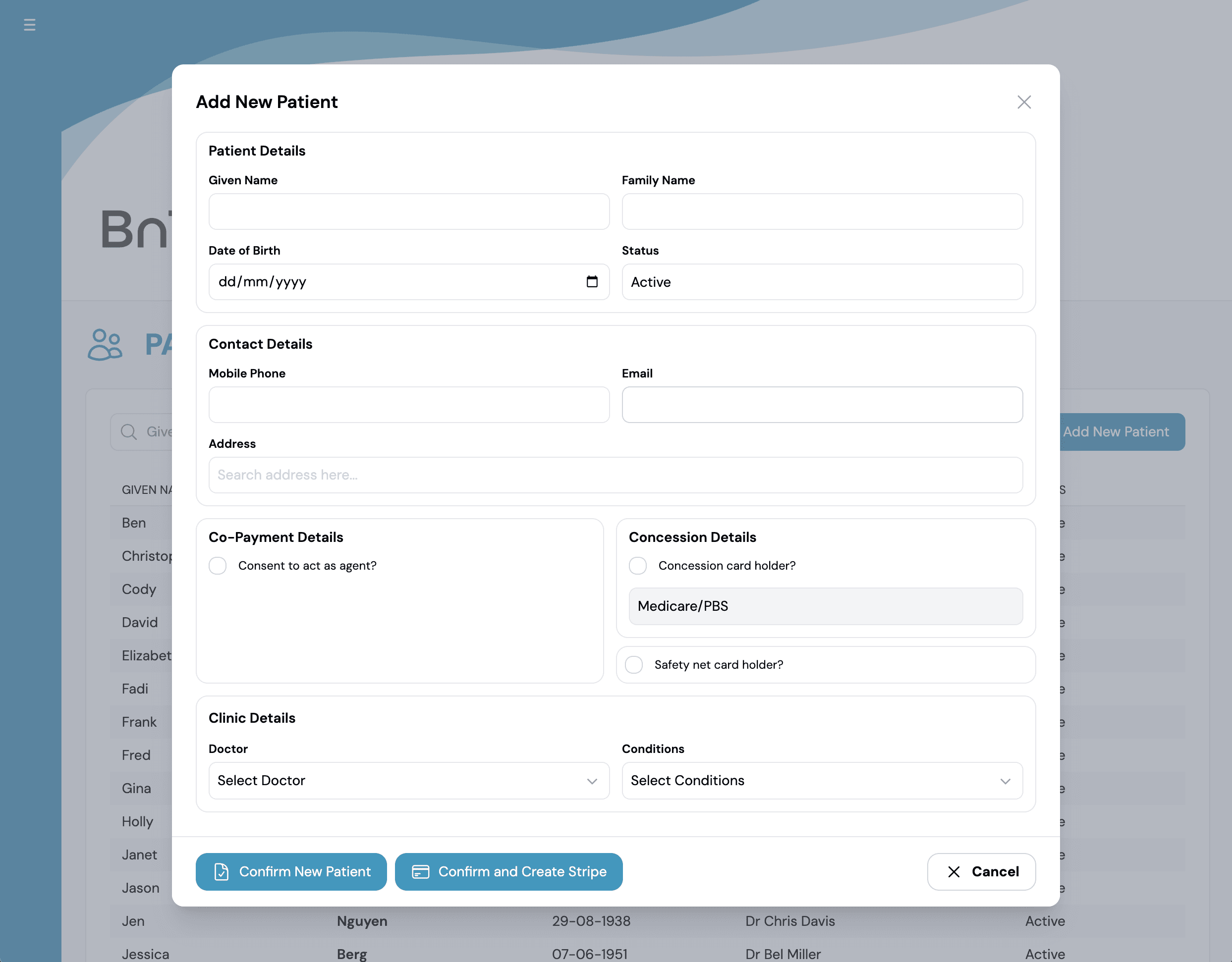
Add the patient

  1. 1

    Open the Patients tab.

  2. 2

    Select Add New Patient.

  3. 3

    Enter the patient's given name, family name, and date of birth.

  4. 4

    Enter their mobile number, email, and address.

  5. 5

    Select their concession and Safety Net status.

  6. 6

    Assign the treating doctor and condition.

  7. 7

    Select Submit.

Add New Patient form

Confirm the patient record

  • The patient appears with an Active status in the Patients list.
  • The patient is available from the Registered Patients list.
  • BnTRx creates the patient profile required for storing their co-payment details.

The patient's payment details must be added from the completed consent form before processing an order.