Training module

Clinic Setup and Staff Management

Back to training

Update your clinic information, administer existing staff accounts, and maintain staff access after the initial BnTRx setup.

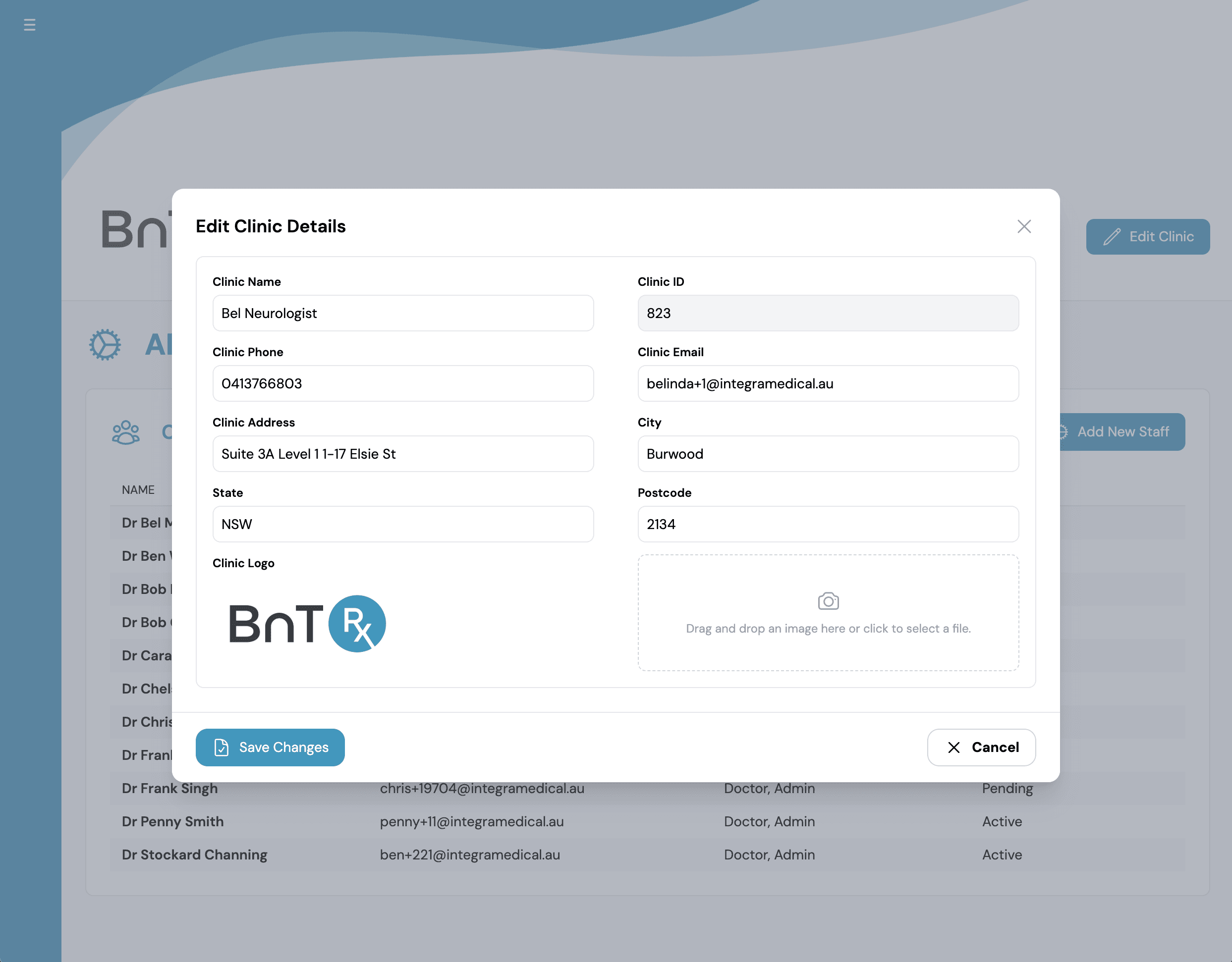
Edit clinic details

Use Edit Clinic when your clinic's information changes.

  1. 1

    Open the Admin tab.

  2. 2

    Select Edit Clinic.

  3. 3

    Update the clinic name, address, phone number, or email as required.

  4. 4

    Upload or replace the clinic logo if required.

  5. 5

    Select Save Changes.

Edit Clinic Details dialog

Manage staff invitations

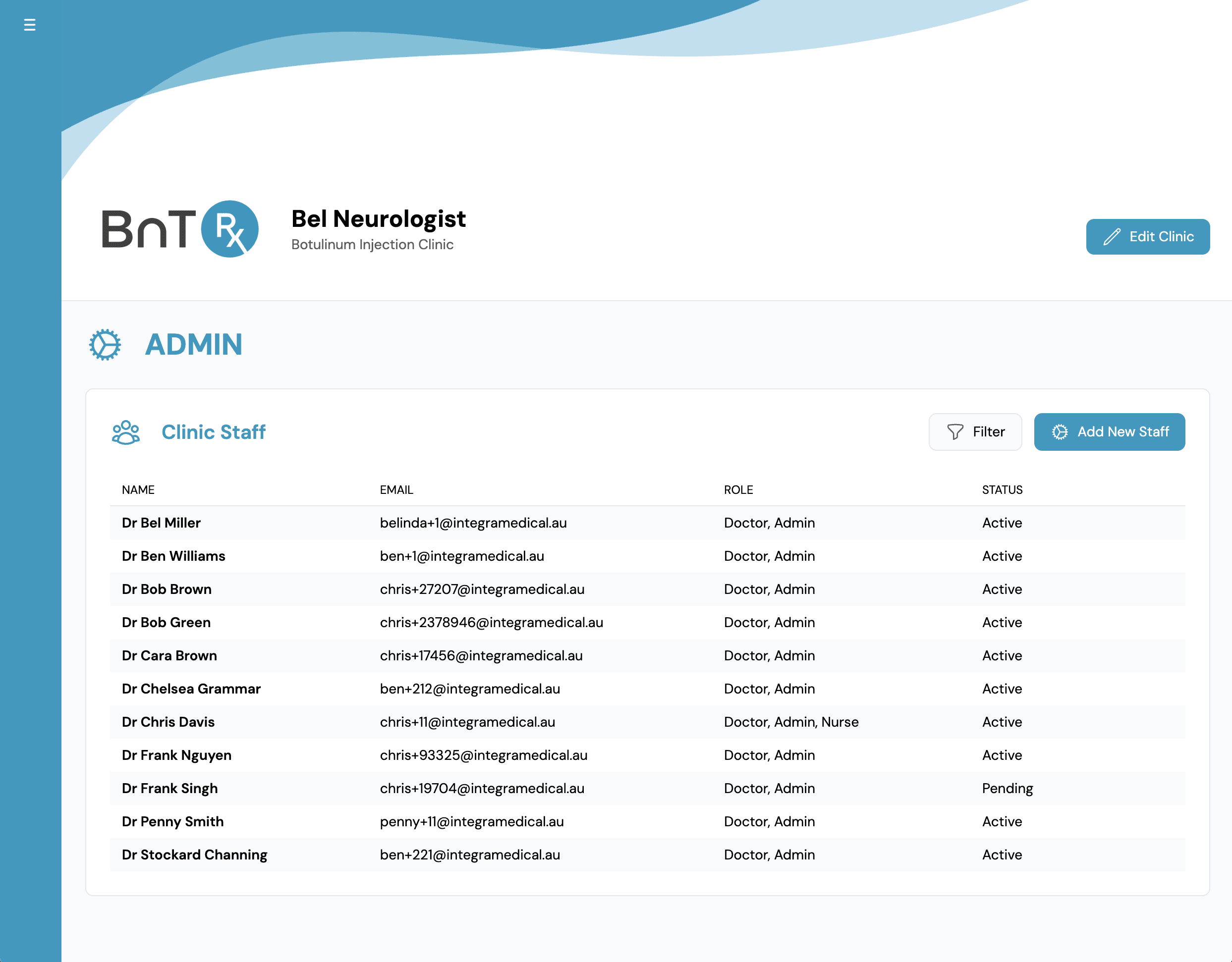
The Clinic Staff section shows staff with Active, Pending, Inactive, or Deleted status.

  1. 1

    Open the Admin tab.

  2. 2

    Find the staff member in the Clinic Staff section.

  3. 3

    If an invitation is still pending, confirm that it was sent to the correct email address.

  4. 4

    Resend the invitation if required.

Invitations expire after 24 hours. Use the Filter button to find staff who are not shown in the default list.

Admin tab showing clinic staff list
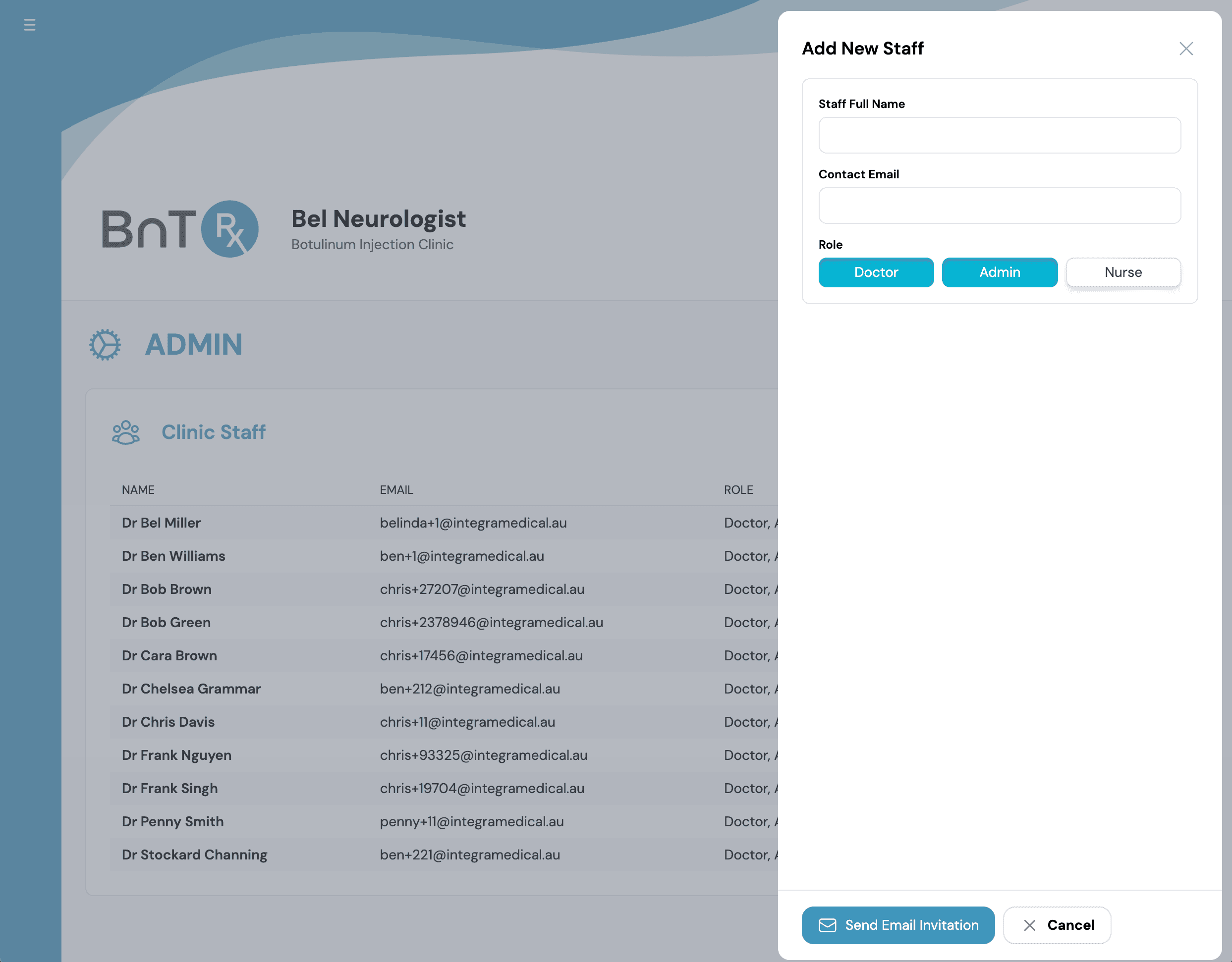
Add New Staff dialog with role selection

Update a staff member

  1. 1

    Select the staff member's name.

  2. 2

    Review their name and email address.

  3. 3

    Update their details if required.

  4. 4

    Review their assigned roles.

  5. 5

    Select Save Changes.

Only assign the permissions required for the staff member's responsibilities. Keep at least one active Practice Administrator in the clinic.

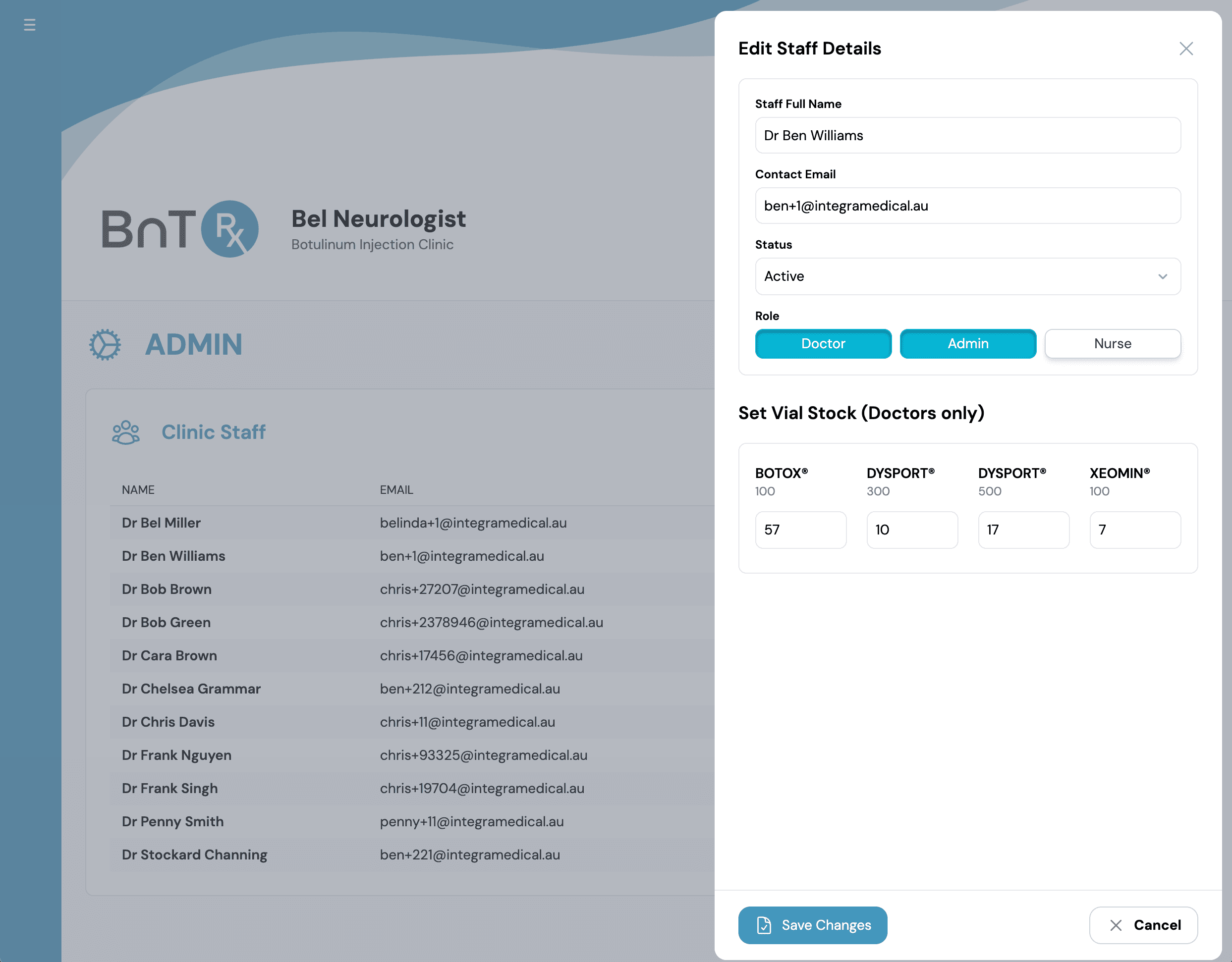
Edit staff details with vial stock allocation

Change staff access

Use the staff member's status to control whether they can access the clinic.

  1. 1

    Open the staff member's record.

  2. 2

    Change their status as required.

  3. 3

    Review their roles before saving.

  4. 4

    Select Save Changes.

  5. 5

    Use the Filter button to view inactive or deleted staff accounts.

Do not create a second account when a staff member already has an existing or pending record.

Adjust a doctor's vial stock

Only staff with the Doctor role can have vial stock allocated to them.

  1. 1

    Open the doctor's staff record.

  2. 2

    Review their current vial allocation.

  3. 3

    Adjust the vial stock when a correction is required.

  4. 4

    Select Save Changes.

Use the stock reconciliation workflow for normal vial deliveries. Staff-record adjustments should be reserved for initial setup or correcting an inaccurate baseline.