
Training module

Stock Table Overview

Back to training

Understand each Stock table column, filter stock records, and interpret the quantities shown for every doctor and medication.

Understand each stock row

Each Stock table row represents one medication associated with one doctor. Use each row to review the following information.

  • The doctor who owns the stock.
  • The medication and vial type.
  • Vials physically available in the clinic.
  • Replacement orders in progress.
  • Total stock associated with that doctor and medication.

Doctors must have the Doctor role before vial stock can be allocated to them.
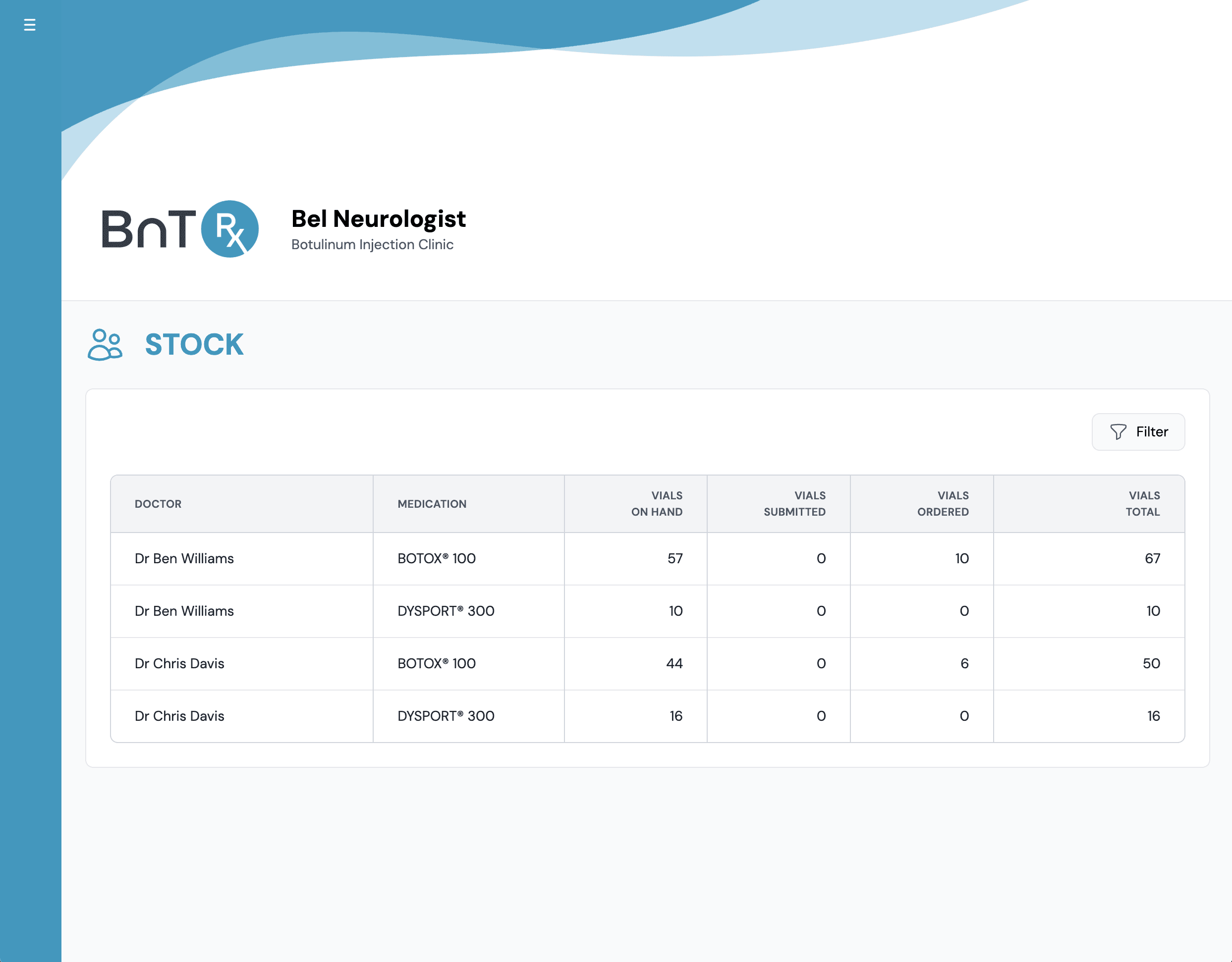
Stock tab showing vial counts by doctor and medication

Vials on Hand

Vials on Hand is the physical vial quantity currently available in the clinic fridge for that doctor and medication. This value changes throughout the stock workflow.

  • It starts from the opening stock entered in the doctor's staff record.
  • It decreases as vials are used for submitted patient orders.
  • It increases when replacement-vial deliveries are reconciled.
  • It should match the clinic's physical stock.

Submitted

Submitted is the number of replacement vials associated with patient orders submitted in BnTRx but not yet sent to HPS. These orders have completed the clinic submission workflow and are waiting for pharmacy processing.

Ordered with HPS

Ordered with HPS is the number of replacement vials already sent to HPS but not yet marked as received by the clinic. The quantity remains in this column until the corresponding delivery is reconciled.

Total

Total represents the stock currently associated with that doctor and medication across the complete replacement cycle. It includes the following quantities.

  • Vials on Hand.
  • Submitted replacement quantities.
  • Ordered with HPS quantities.

Use Total to understand the overall stock position, including physical stock and replacement vials in progress.

Filter the Stock table

  1. 1

    Open the Stock tab.

  2. 2

    Select Filter.

  3. 3

    Choose a doctor, medication, or both.

  4. 4

    Apply the filter.

  5. 5

    Review the matching rows.

  6. 6

    Clear the filter to restore the complete Stock table.

Check the opening stock baseline

When the clinic first begins using BnTRx, Vials on Hand is based on the initial vial quantities entered in each doctor's staff record. If the opening quantity is incorrect, correct the baseline as follows.

  1. 1

    Open the Admin tab.

  2. 2

    Open the relevant doctor's staff record.

  3. 3

    Correct the vial quantity.

  4. 4

    Select Save Changes.

  5. 5

    Return to the Stock tab and confirm the updated figure.

Use this adjustment for setup corrections only. Process normal replacement-vial deliveries through Reconcile Orders.

Monitor stock changes

Stock quantities change as orders progress.

  • A submitted patient order affects Vials on Hand and Submitted.
  • Pharmacy processing moves the replacement quantity from Submitted to Ordered with HPS.
  • Delivery reconciliation moves the replacement quantity from Ordered with HPS back to Vials on Hand.

If the displayed stock does not match the clinic's physical or expected stock, review the related patient orders and delivery reconciliation before making a manual correction.