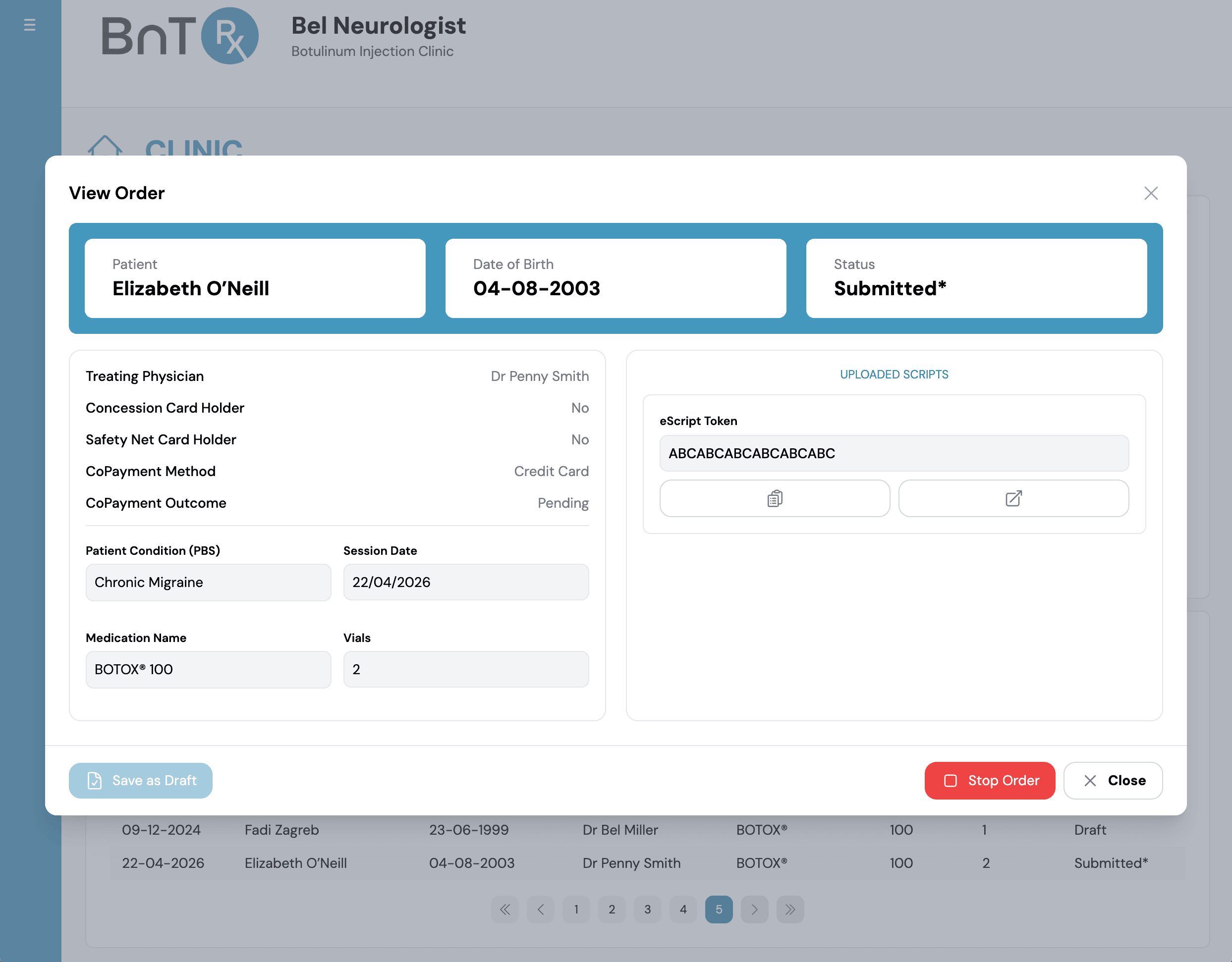
Complete and draft the order
- 1
Select patient's order in Today's Clinic List.
- 2
Select medication and enter number of vials prescribed.
- 3
Select Save as Draft to move to next Edit Order stage.

Training module
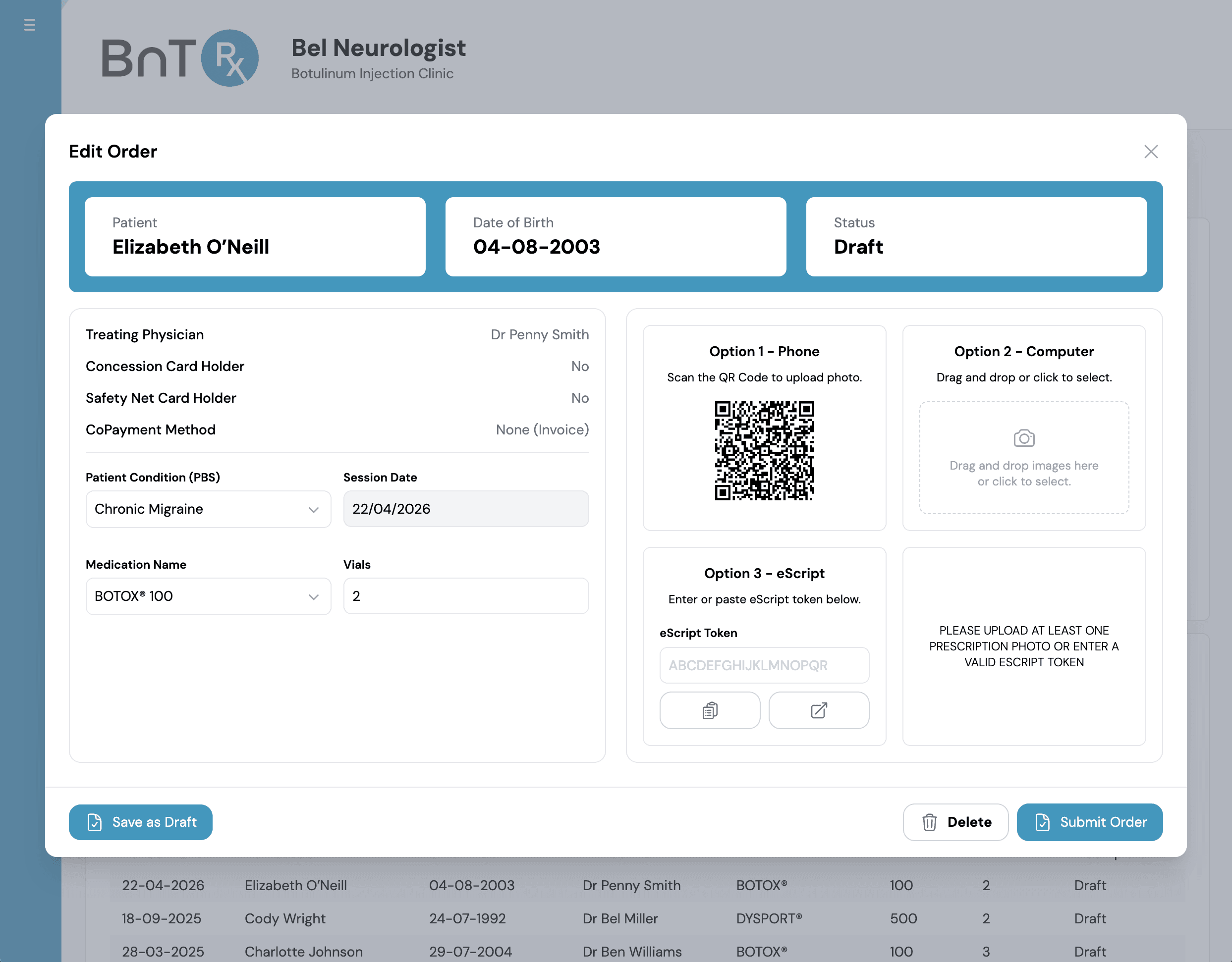
Complete medication details, upload prescriptions, and submit orders to pharmacy processing.
Select patient's order in Today's Clinic List.
Select medication and enter number of vials prescribed.
Select Save as Draft to move to next Edit Order stage.
Upload via mobile QR photo workflow, or
Drag and drop files from computer.
Multiple images are supported.
Remove unwanted images with the trash icon.
If not ready, keep order as Draft and return later.
When ready, select Submit Order.